
Setting up in-app exchanges
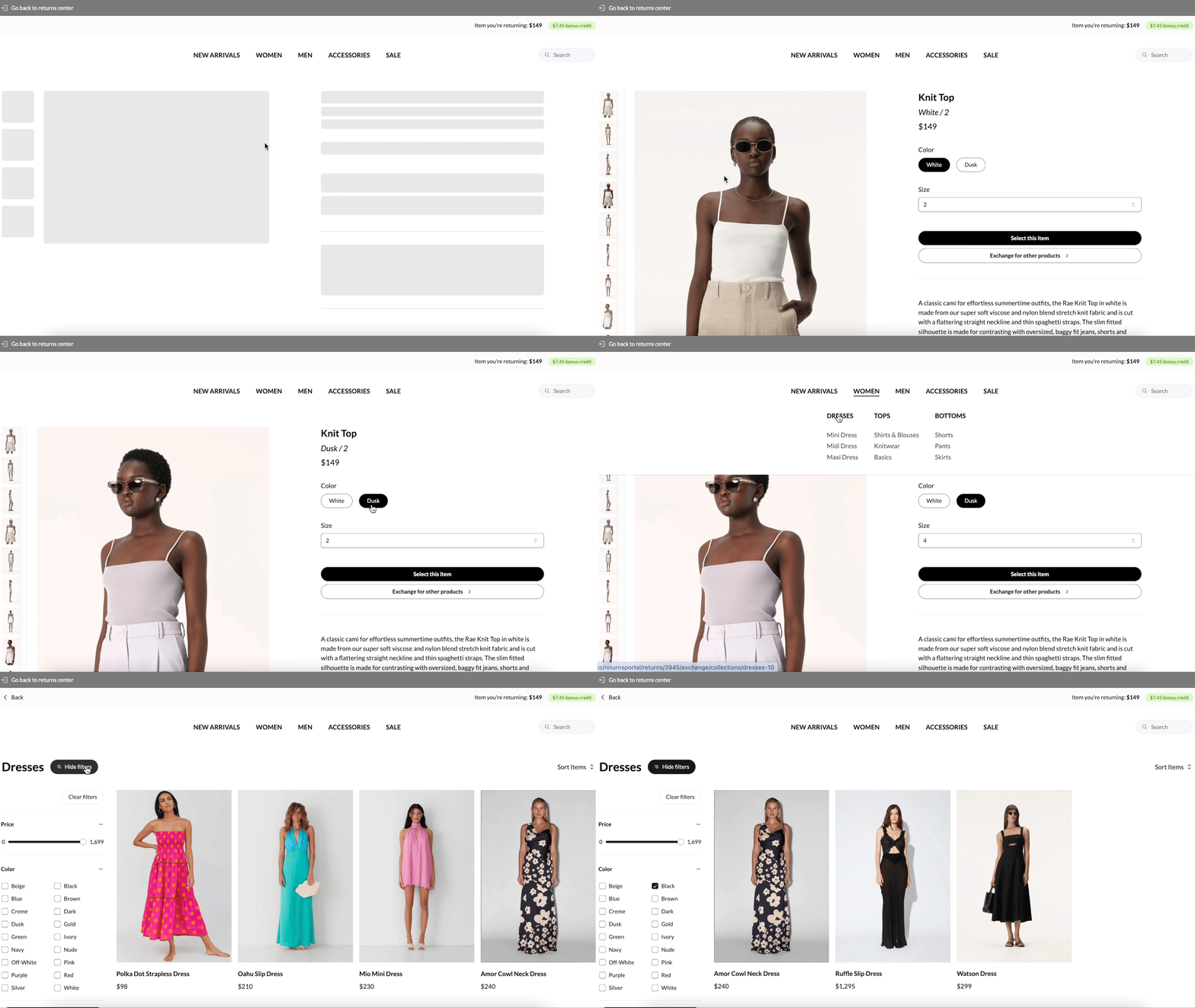
In-app Exchange allows your customers to exchange for any items across your entire product catalogue. For example, instead of exchanging for a different size, the customer gets to browse through your entire product catalogue to exchange for a completely different product!
Our exchange flow is designed to emulate an in-store experience for your customers.
Shopping menus for customers to shop across your entire product catalogue
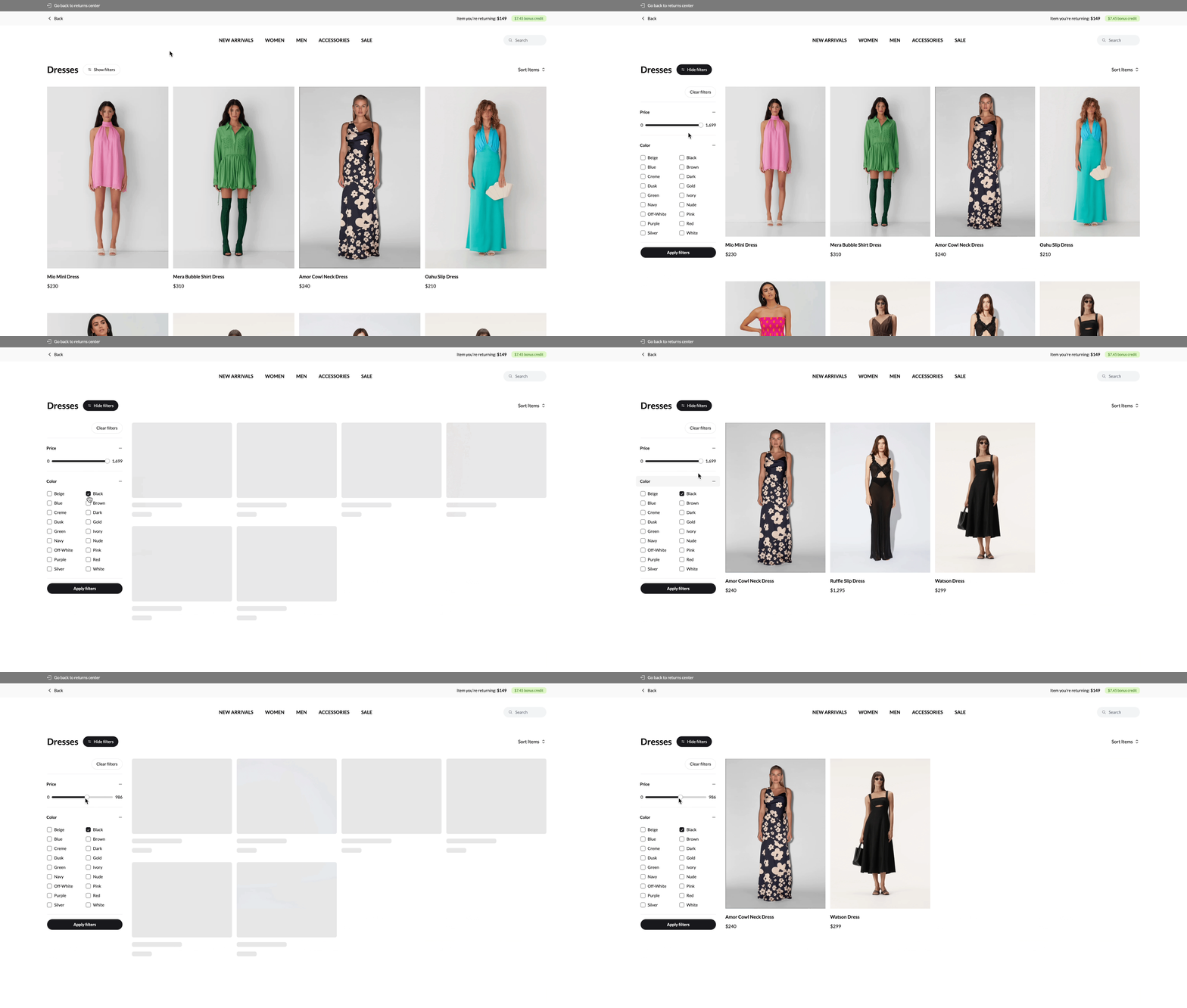
Sort and filter for customers to easily browse through their favourite products
Product recommendations to encourage exchanges and help customers find the right product the second time around!
Setting up in-app exchange settings
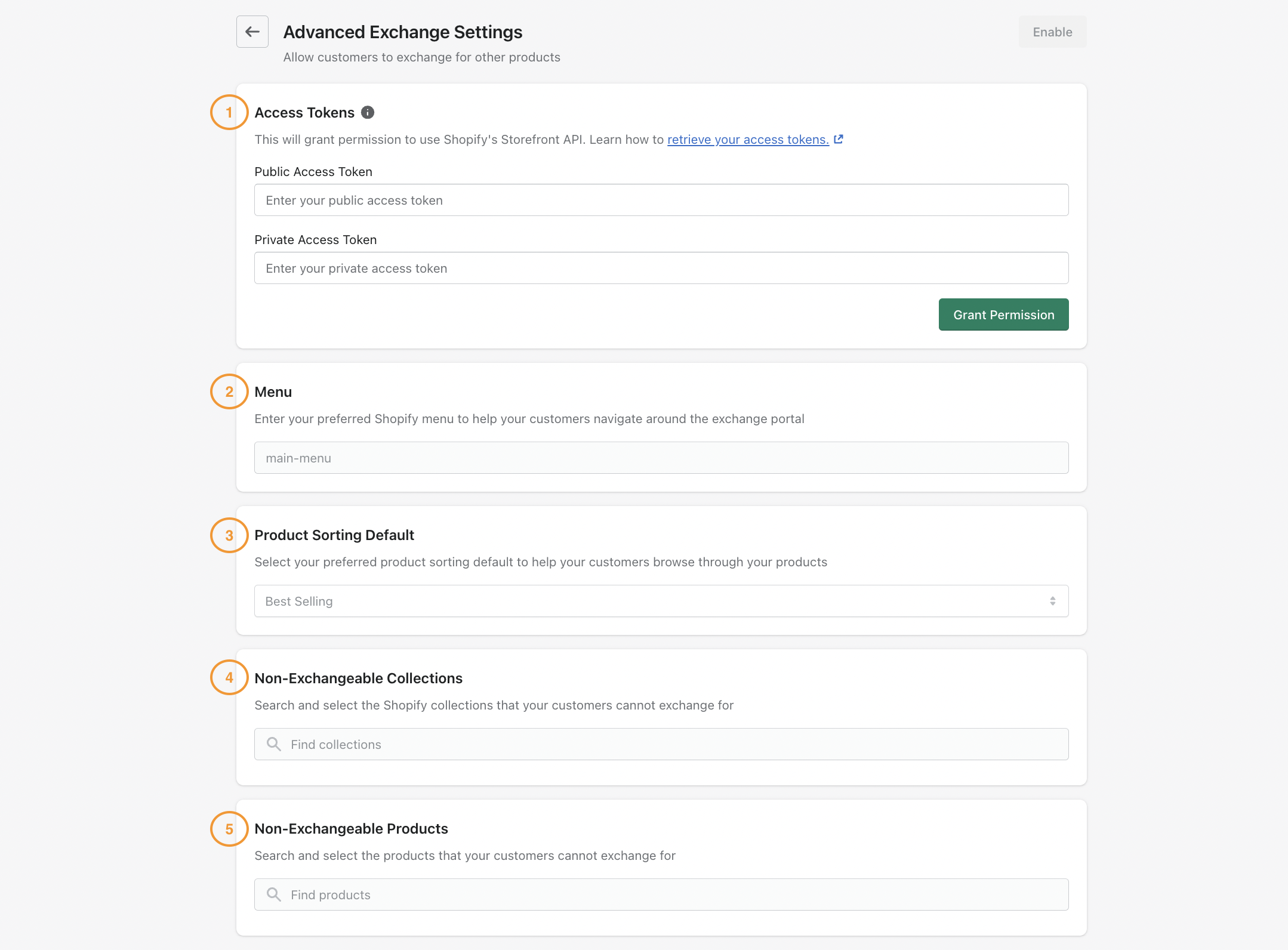
1. Configure in-app exchange settings
Here's a checklist to guide you with the setup:
Access Tokens: Copy and paste both the Headless public and private access tokens here. These tokens allow you to use Shopify's Storefront API.
Menu: Add your preferred Shopify menu for easy navigation within the exchange portal. See how you can locate it here.
Product Sorting Default: Choose how products will be sorted by default to help customers browse between products.
Non-Exchangeable Collections: Specify collections that should not be available for exchanges. For instance, exclude sale collections.
Non-Exchangeable Products: Specify products that should not be available for exchanges, such as underwear for hygiene reasons.
2. Customise product filters
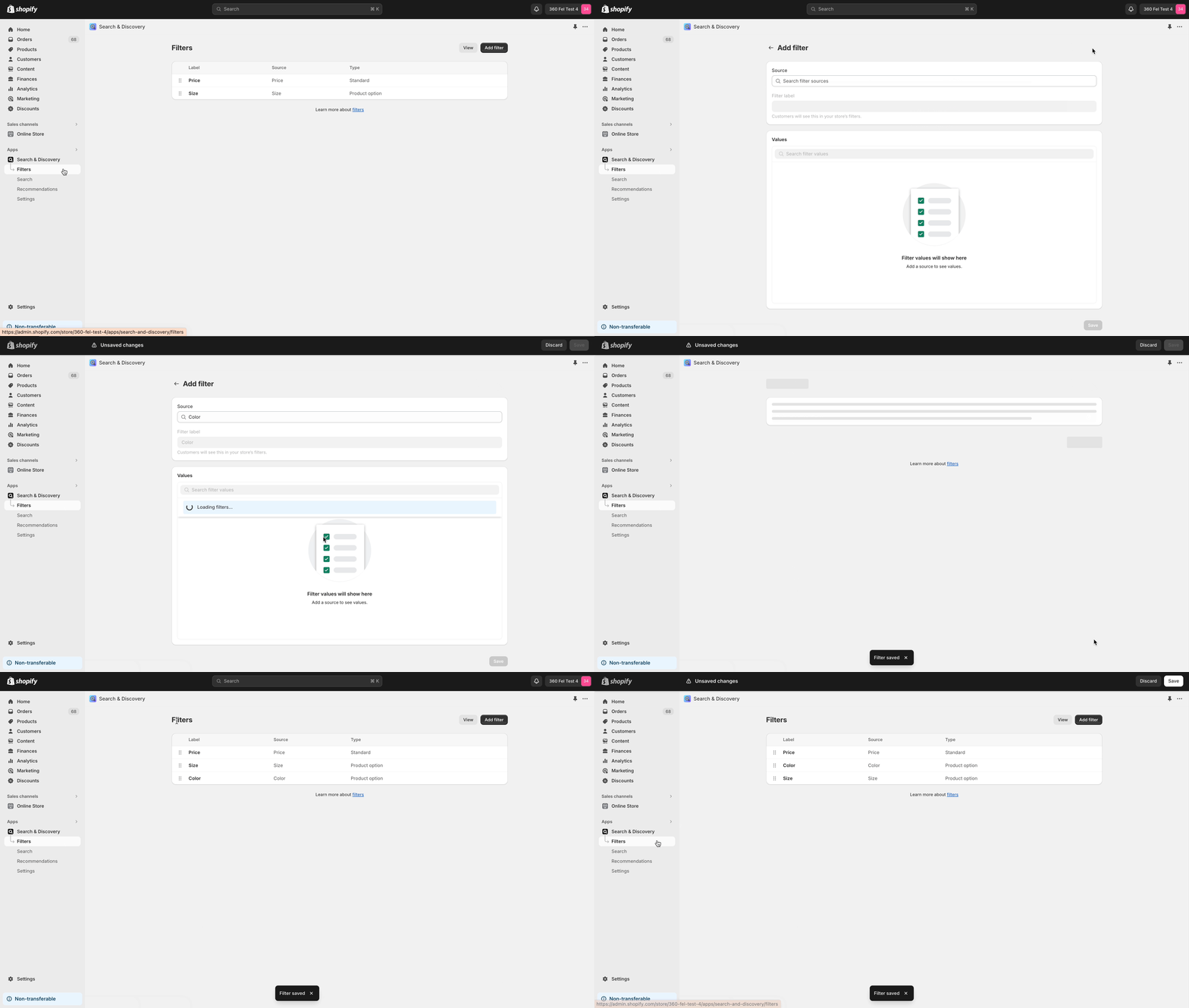
It is recommended to have Search & Discovery installed as it allows you to customise various filters for your customers, allowing them to refine their product search based on criteria like price, colour, size, and more.
After installing the app from Shopify App Store, click on Filters and Add filter. Next, select your preferred filter source and save. To sort the filters, simply drag and move the cards around.
Here’s how customers would be able to filter for products in the customer journey:
Once it's set up, just make sure you activate In-app Exchange and you're good to go! If you plan to test out the new exchange flow, please ensure you use an order with a price assigned to the item.
Frequently asked questions
How to locate my handle menu?
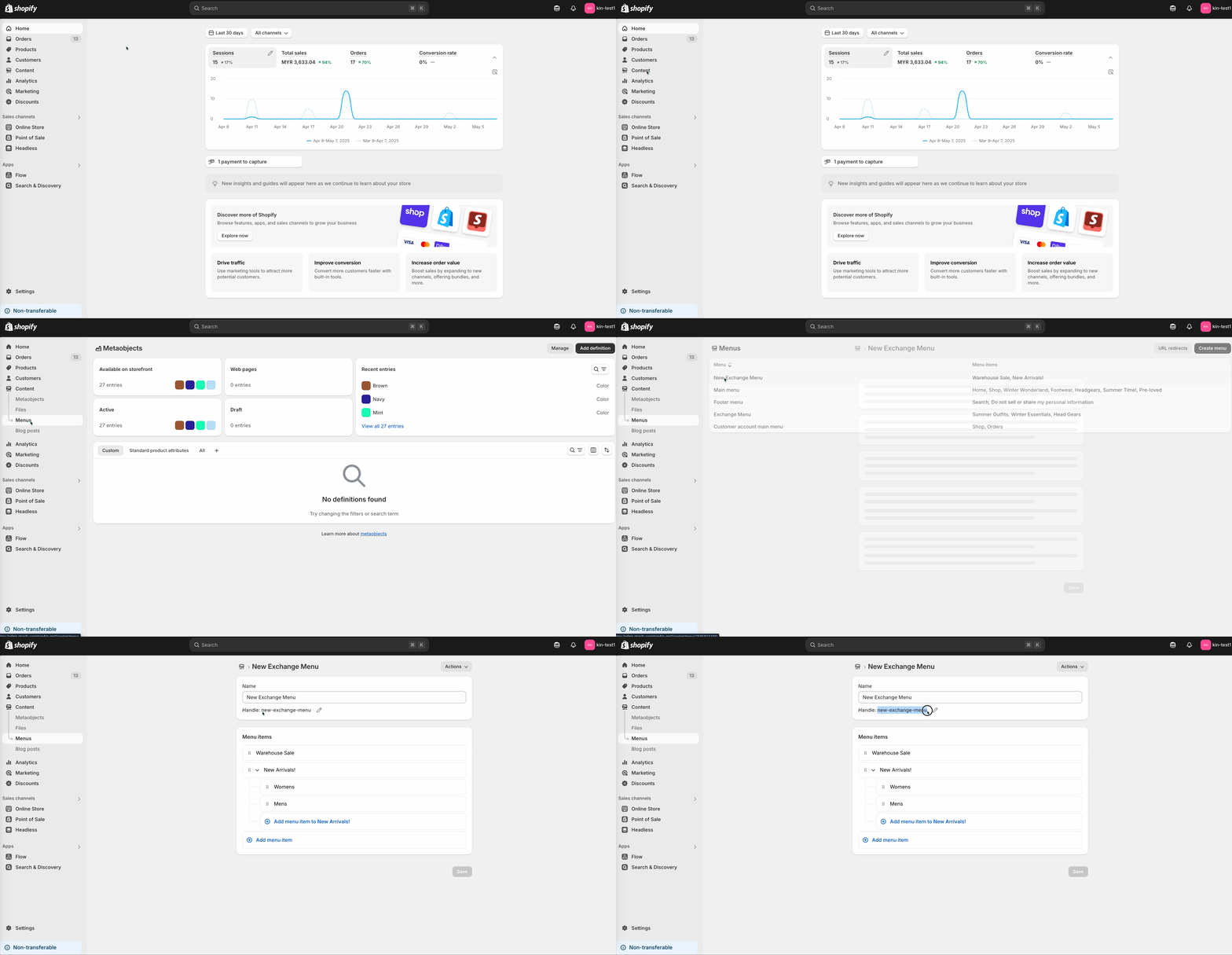
In your Shopify store, navigate to the Content tab and click into Menus to select the Shopify menu you'd like to be displayed to your customers during the exchange process. Copy the menu handle and paste it to PostCo in-app exchange settings.
Can I customise my exchange portal menu?
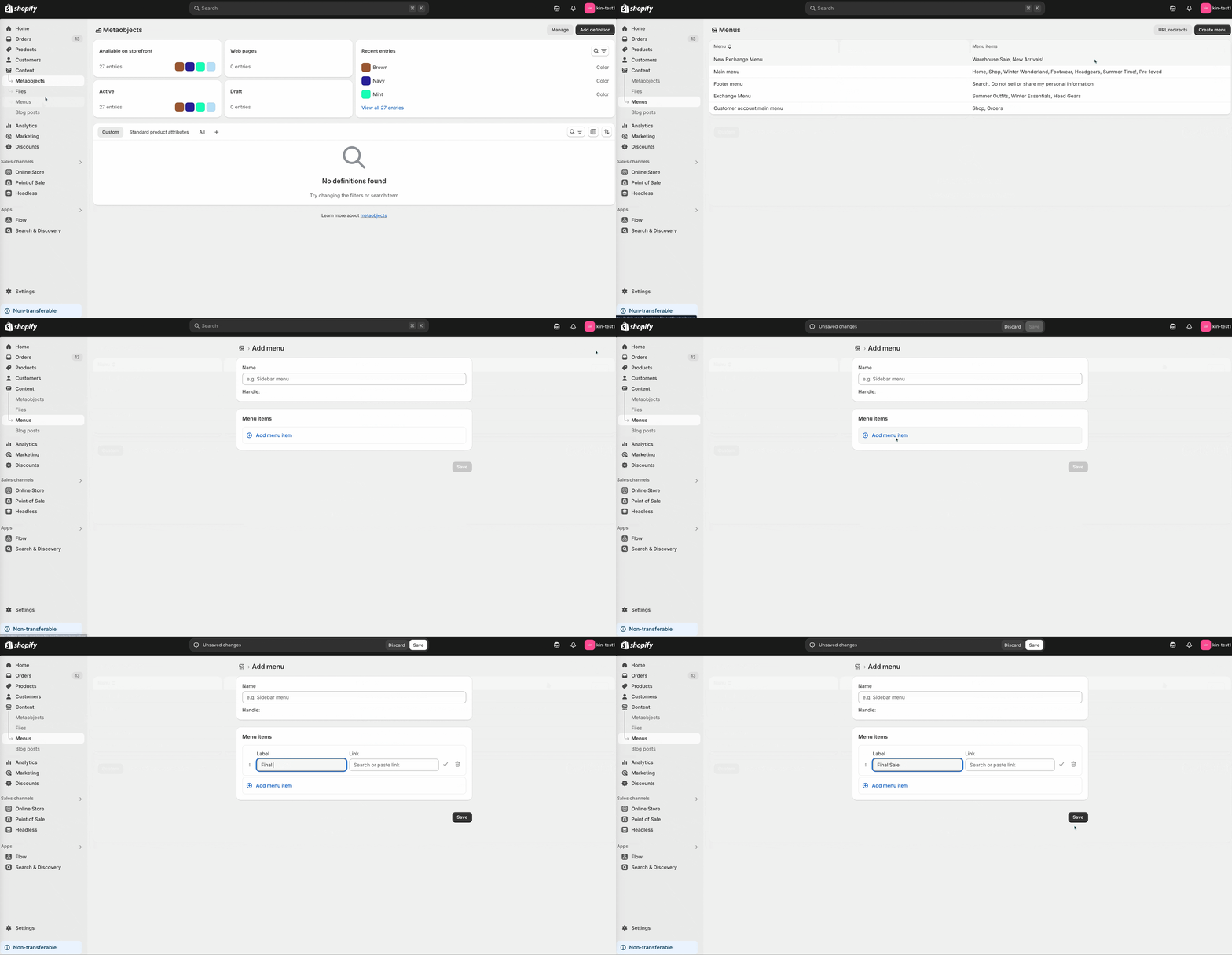
Yes you can. If you wish to create a different menu for the exchange portal, on your Shopify store navigate to the Content tab and select Menus. Then, proceed to click on “Create Menu” and add menu items to customise your own set of menu to be displayed to the customers.
* Do note that a menu item must be either a collection or a product.
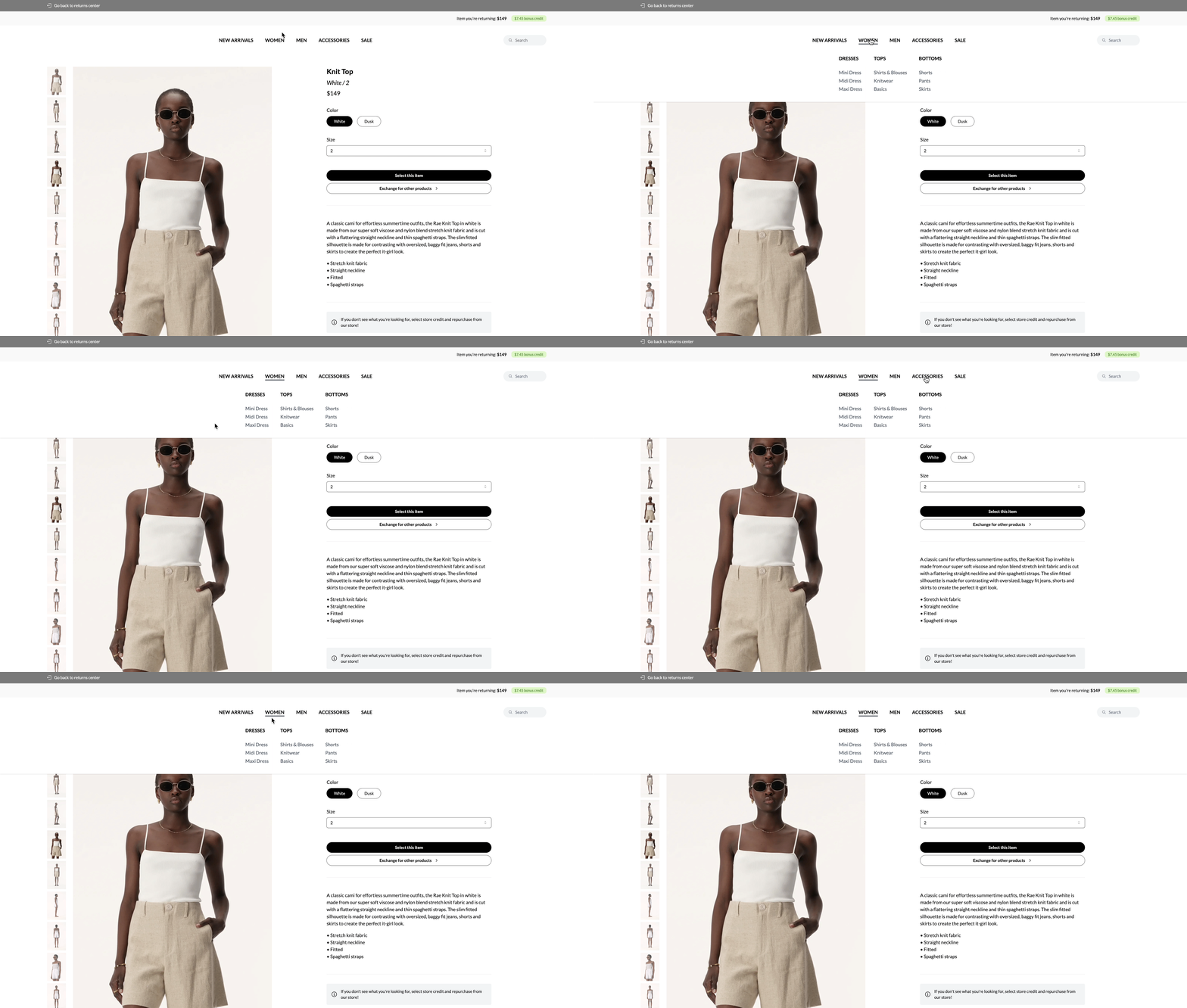
Here’s how it would be displayed in the customer journey:
What if I don't have Search & Discovery?
Search & Discovery is optional but highly recommended. It helps you to customise product filters, making it simpler for your customers to find exactly what they're looking for during the exchange process.