
Customising your own shipping method for your customers
Custom Shipping Method allows you to fully tailor the return process by providing your own shipping instructions, return labels and label fees. This is particularly useful when your preferred carrier isn't integrated with the platform.
By setting up a custom shipping method, you can ensure that your returns process aligns with your policies, delivering a seamless and consistent experience for your customers.
Setting up a custom shipping method
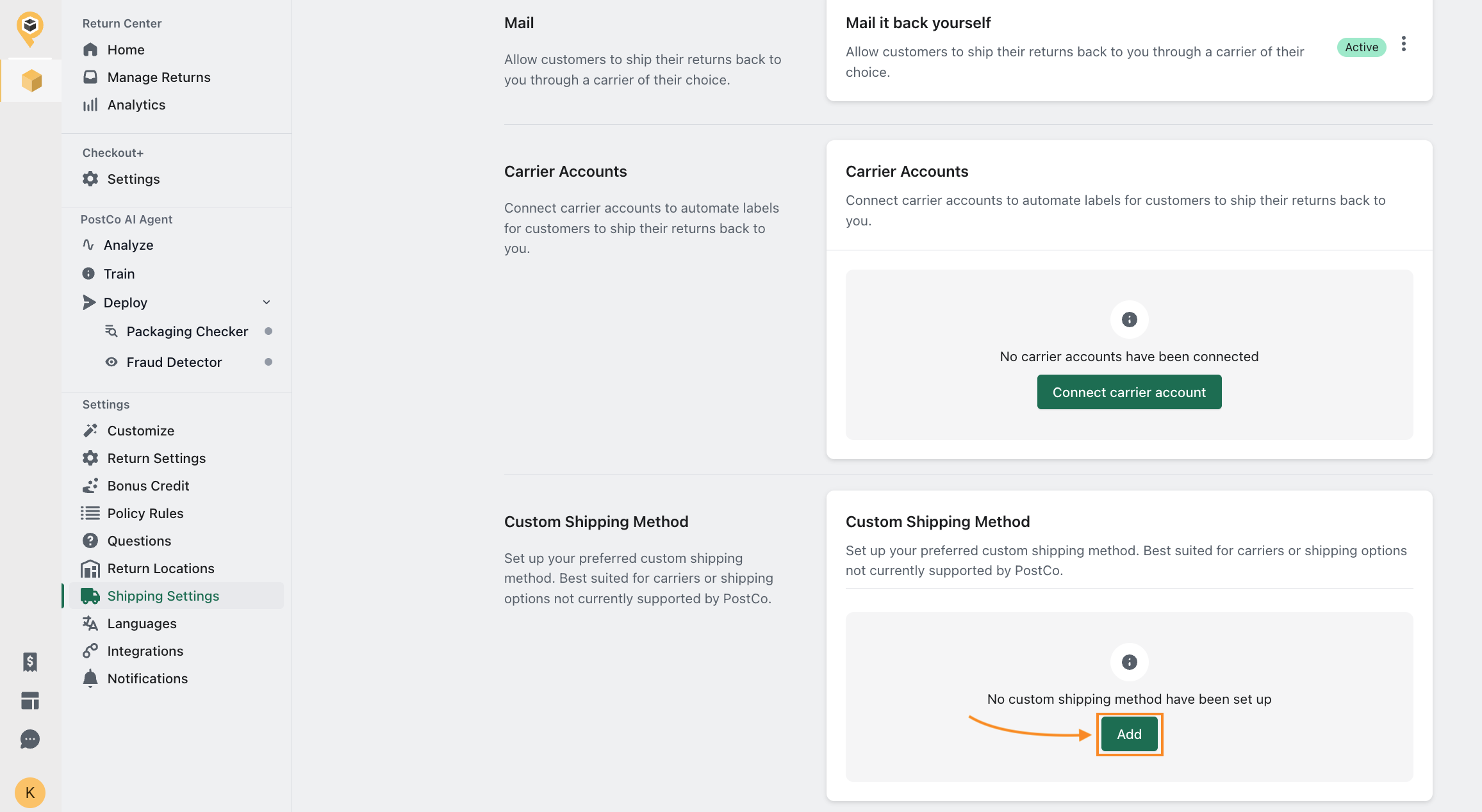
In the Shipping Settings page, navigate to the Custom Shipping Method section, click on 'Add' and proceed to set up the following:
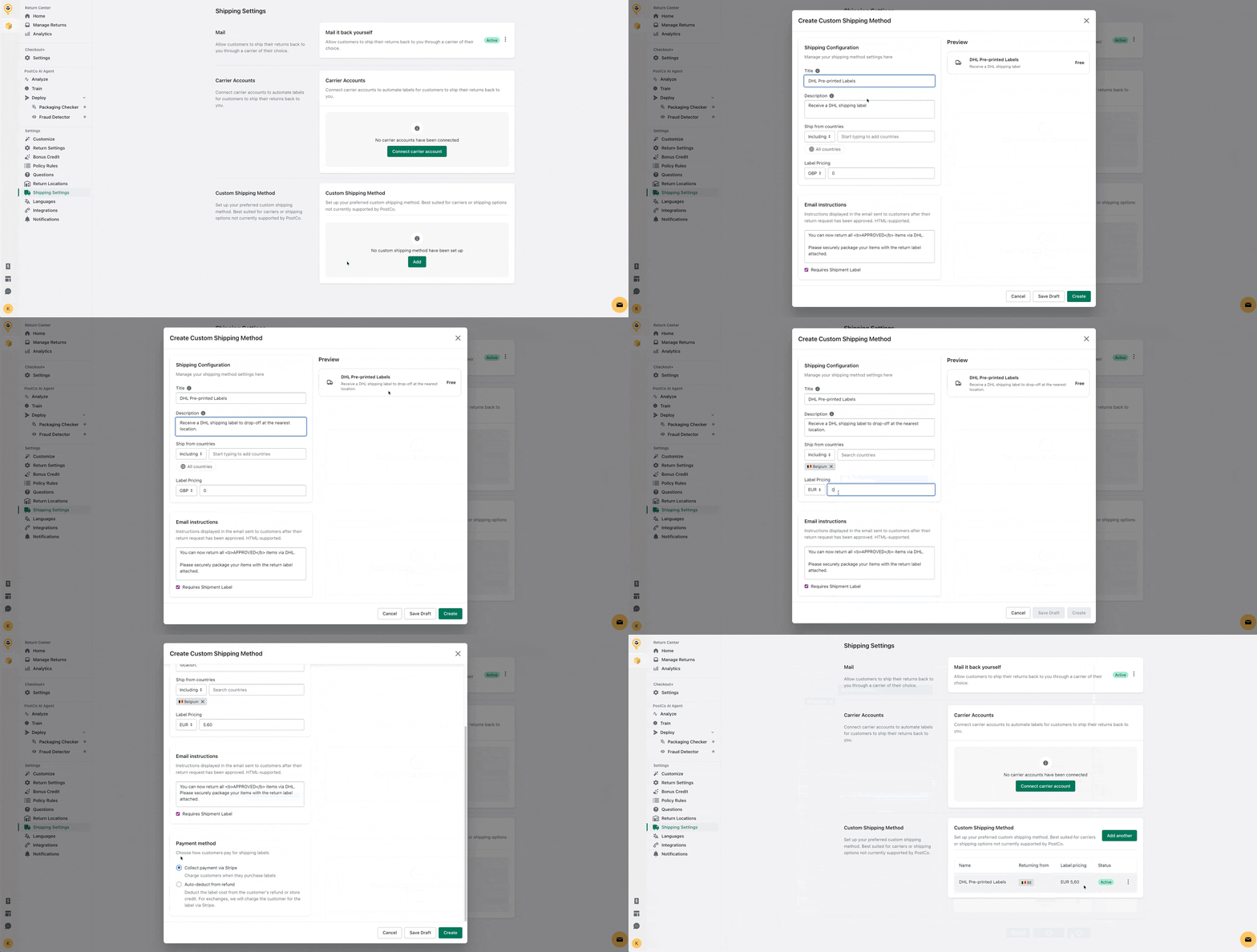
Title - This appears as the name when customers are selecting a shipping method.
Description - This text will appear as a subtitle under the shipping method title, providing customers an overview of what to expect.
Ship from countries - Controls whether this shipping method is available to customers based on the country they are returning from.
Including: Only customers returning from the included countries will see this shipping method.
Excluding: Customers returning from excluded countries will not see this shipping method.
Label pricing - This sets the price customers are required to pay when selecting this shipping method.
Email instructions - The steps that customers receive via email when their return is approved on how to return their items through this shipping method.
Requires Shipment Label - Enabling this option will prompt the retailer (you) to upload a shipping label during the review stage of the return request, which will be sent to the customer for printing.
Payment method - This determines how customers will pay for their return labels.
Collect payment via Stripe: Customers submit their card details to Stripe and are charged for the labels when their return is reviewed.
Auto-deduct from refund: Label costs are deducted from the customer's refund. For exchanges, the label fees are charged through Stripe.
Here's a visual guide to set up a new custom shipping method:
Editing a custom shipping method
After creating a shipping method above, you can always edit it from your PostCo dashboard.
In the Shipping Settings page, simply locate the shipping method you'd like to make changes to and click 'Edit' to update any relevant fields.

What your customers would see
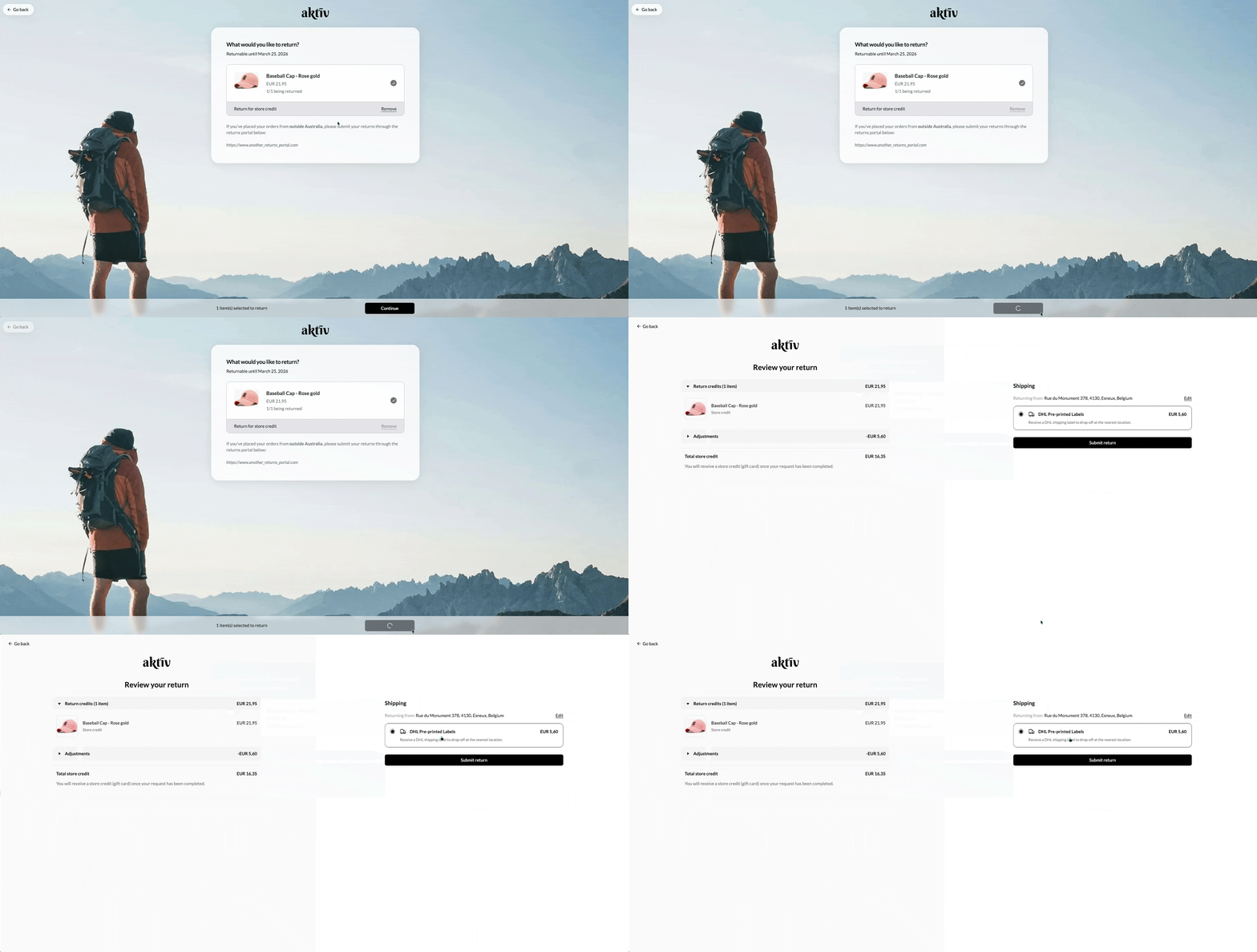
This is how it would look like during the customer returns journey:
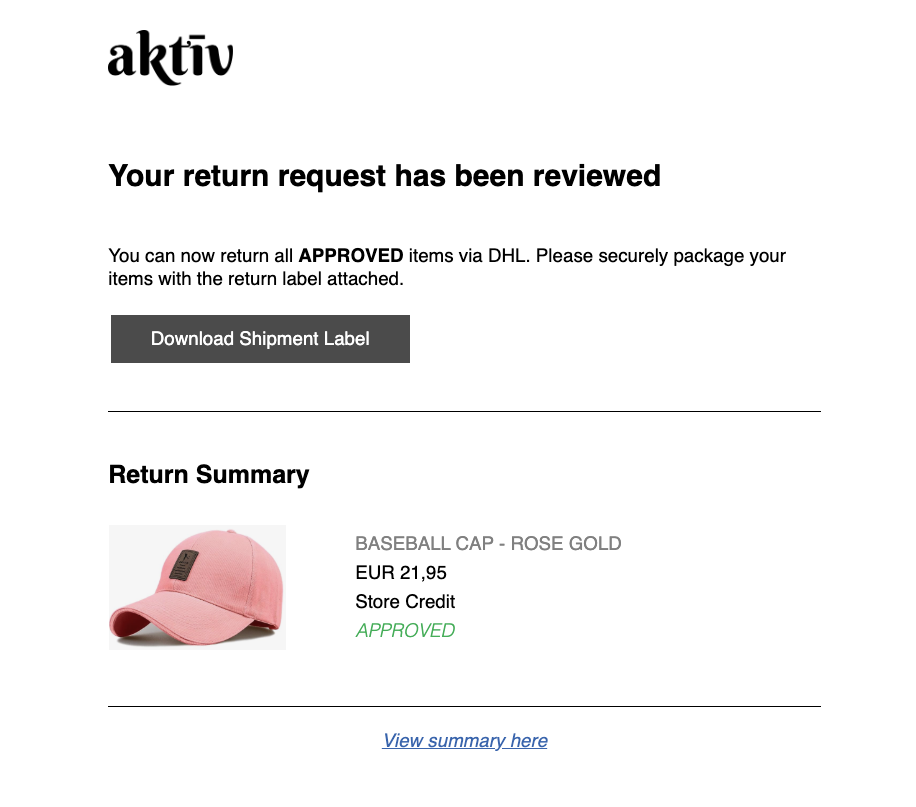
This is how the email notification would look like with your preset shipping instructions:
Frequently asked questions
How does it look like if I am required to upload a return shipping label for my customers?
After reviewing and approving the return request, you will be prompted to upload a return label. This label will then be sent to the customer along with your preset shipping instructions.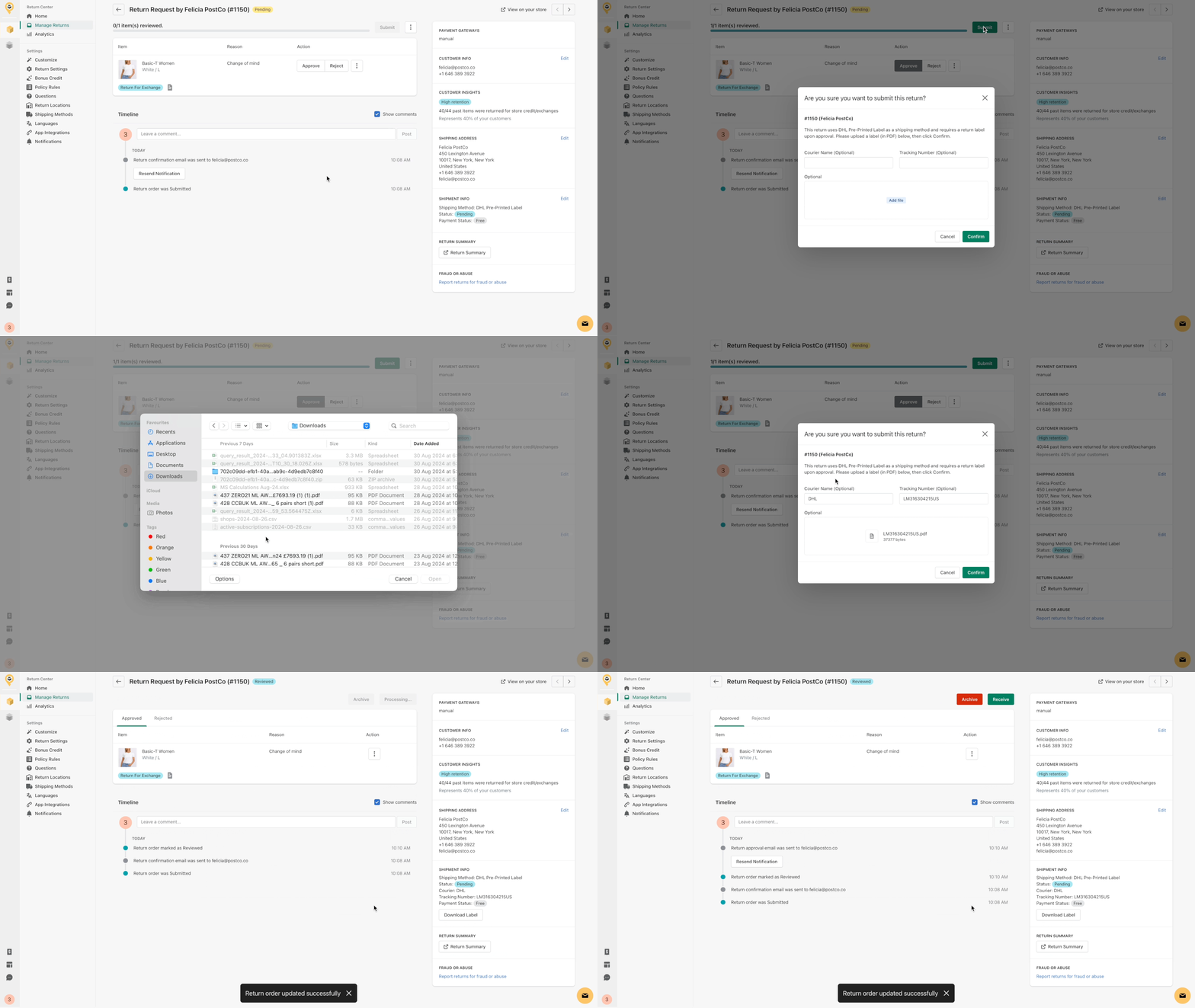
Is uploading a return shipping label necessary?
Depending on the carrier you choose, some will accept parcels with just the tracking number written on the package, eliminating the need for a printed label.