Automating return labels with your carrier account (BYOA)
If you have an existing account with a carrier, you can connect it to PostCo to automate return labels at your negotiated rates.
Connecting your carrier account
Submitting your account credentials
In the Shipping Settings page, simply click on 'Connect carrier account' and proceed with the following steps:
Under the Connect your own account tab, choose the carrier you want to enable (e.g. Royal Mail, An Post, DHL Express) and click 'Connect'
Continue to enter your credentials & account details based on the selected carrier and click 'Proceed'

Pending manual setup
Once the above is completed, a carrier account will be created with its status set to "Pending Manual Setup".
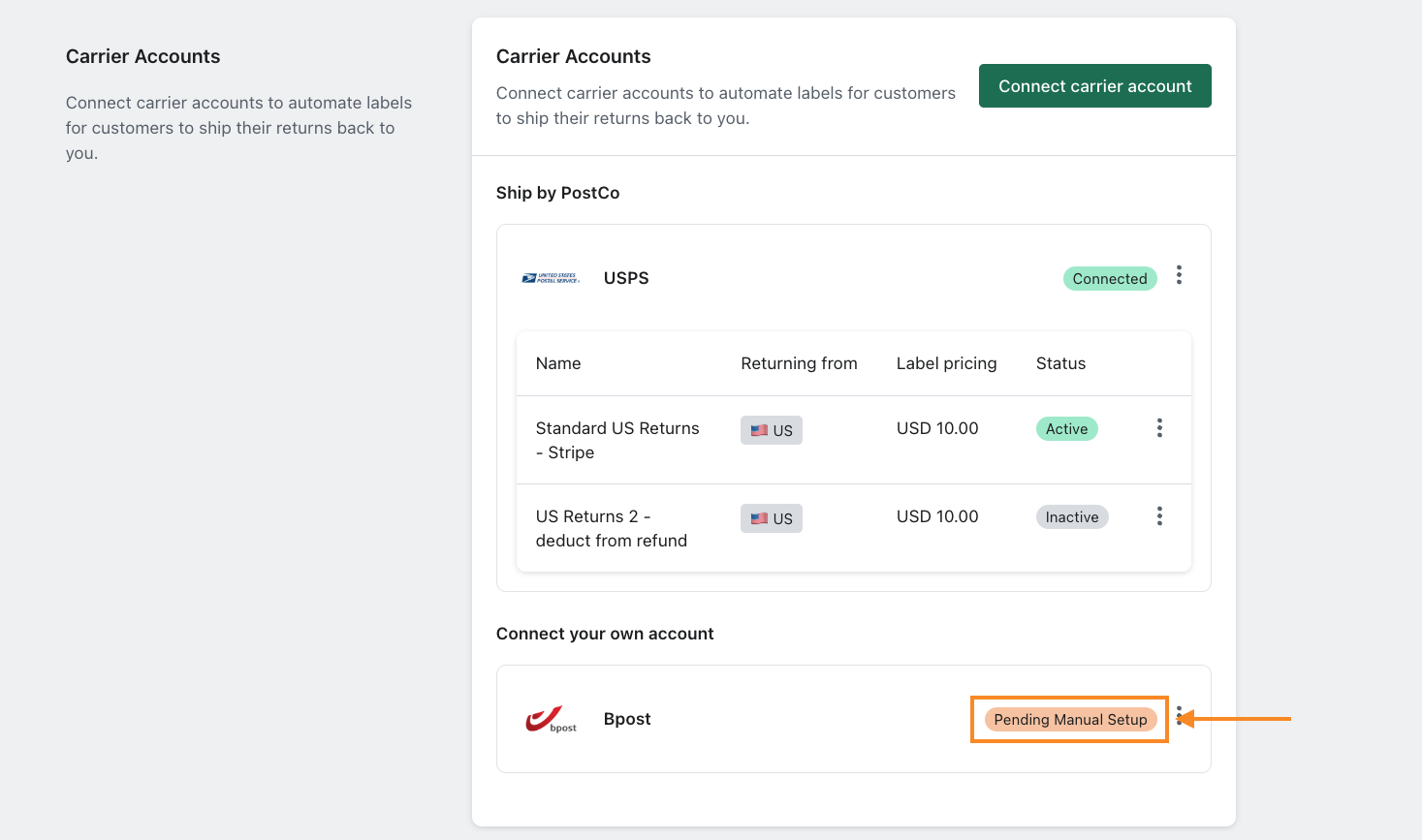
Our team would review your credentials and perform the necessary setup on our end. This process takes around 3-5 working days and our team will be in touch if there's further details needed.
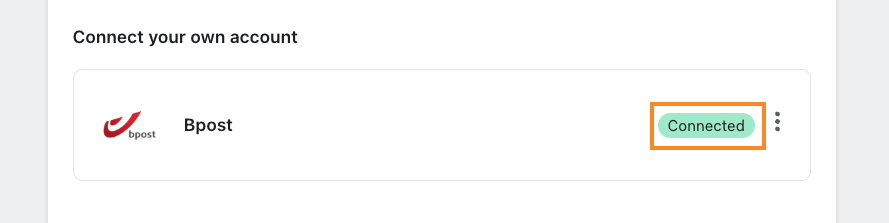
When this has been completed, the carrier account status would be updated to 'Connected'.
Adding a shipping method under a carrier account
You can proceed to add a shipping method under a carrier account once it has been connected from the previous section.
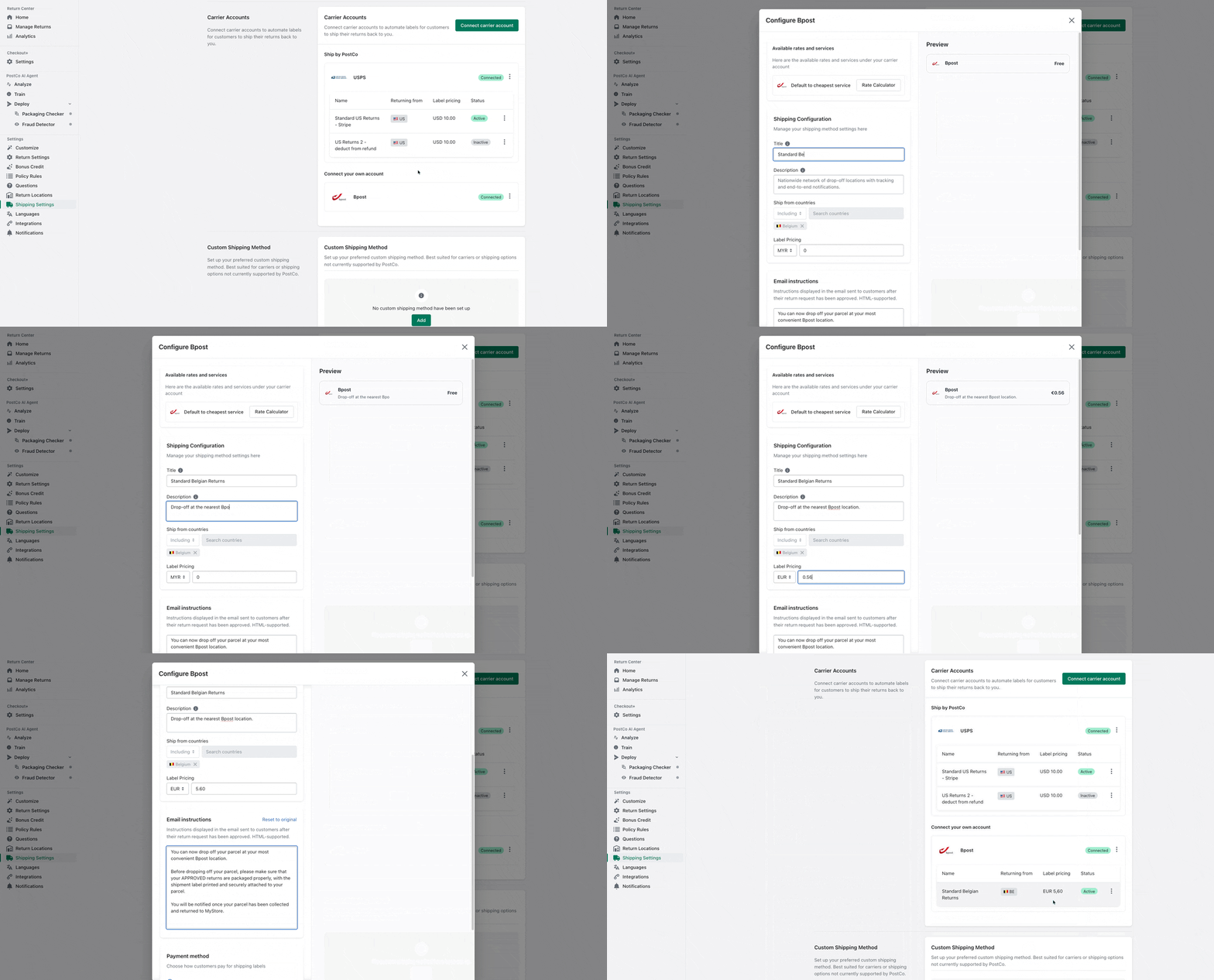
To do this, simply locate the carrier account you wish to add a shipping method to, click on 'Add shipping method' and proceed with setting up the following fields:
Title - This is only visible to you and helps you keep track of your different shipping methods.
Description - This text will appear as a subtitle under the shipping method title, providing customers an overview of what to expect.
Ship from countries - Controls whether this shipping method is available to customers based on the country they are returning from.
Note: Some carriers only support returns from certain countries and cannot be edited by users e.g. USPS, Royal Mail, Australia PostIncluding: Only customers from included countries are shown this shipping method.
Excluding: Only customers from excluded countries are not shown this shipping method.
Label pricing - This sets the price customers are required to pay when selecting this shipping method. You can choose to charge customers a fixed fee, or a dynamic price based on the carrier’s actual label cost.
Note: Some carriers only support charging a fixed priceFixed price: Customers pay the same amount regardless of the label's actual cost.
Label cost markup: Customers pay the label's actual cost plus the markup percentage set here.
(Set this to 0% if you want customers to pay the label cost only)
Printerless - This determines whether the customer is required to print their labels out or not.
Note: This feature is supported by USPS, FedEx & Royal MailEmail instructions - The steps that customers receive via email when their return is approved on how to return their items through this shipping method
Payment method - This determines how customers will pay for their return labels.
Collect payment via Stripe: Customers submit their card details to Stripe and are charged for the labels when their return is reviewed.
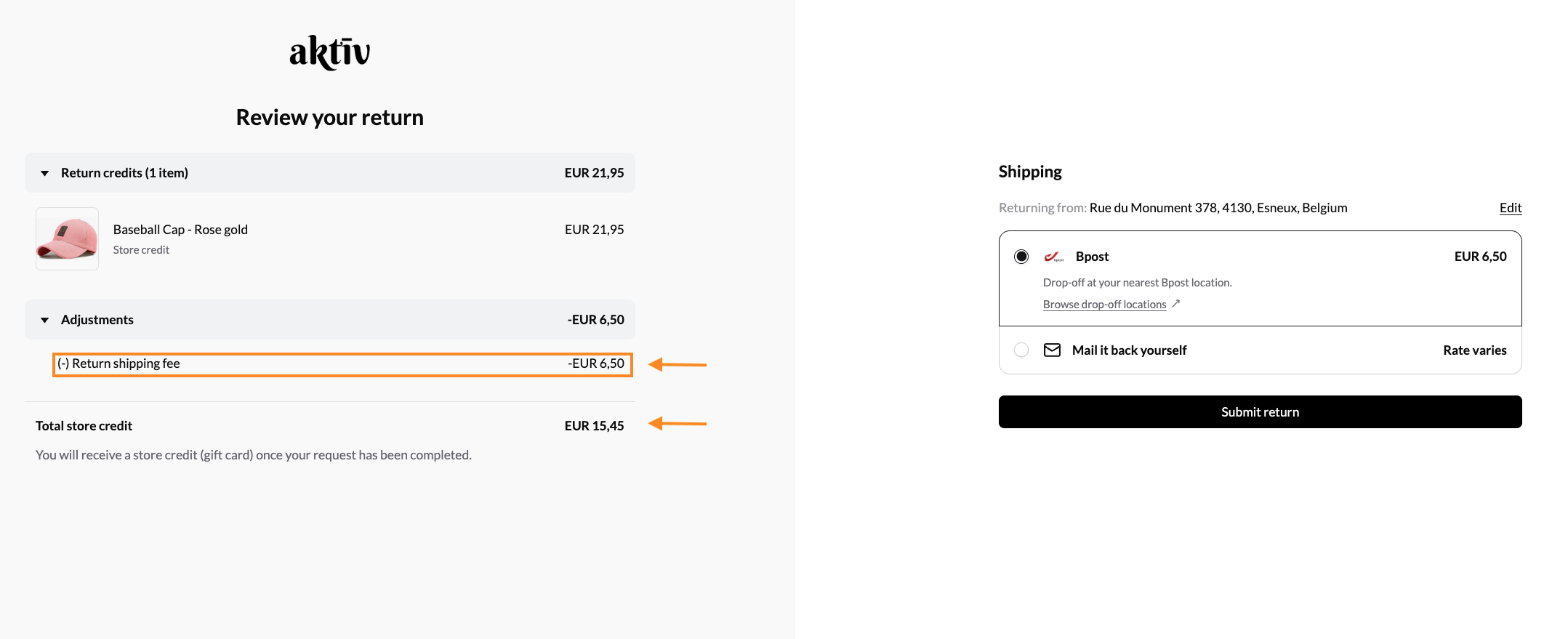
Auto-deduct from refund: Label costs are deducted from the customer's refund. For exchanges, the label fees are charged through Stripe.
Here's a visual guide on adding a shipping method under your connected carrier account:
Editing a shipping method
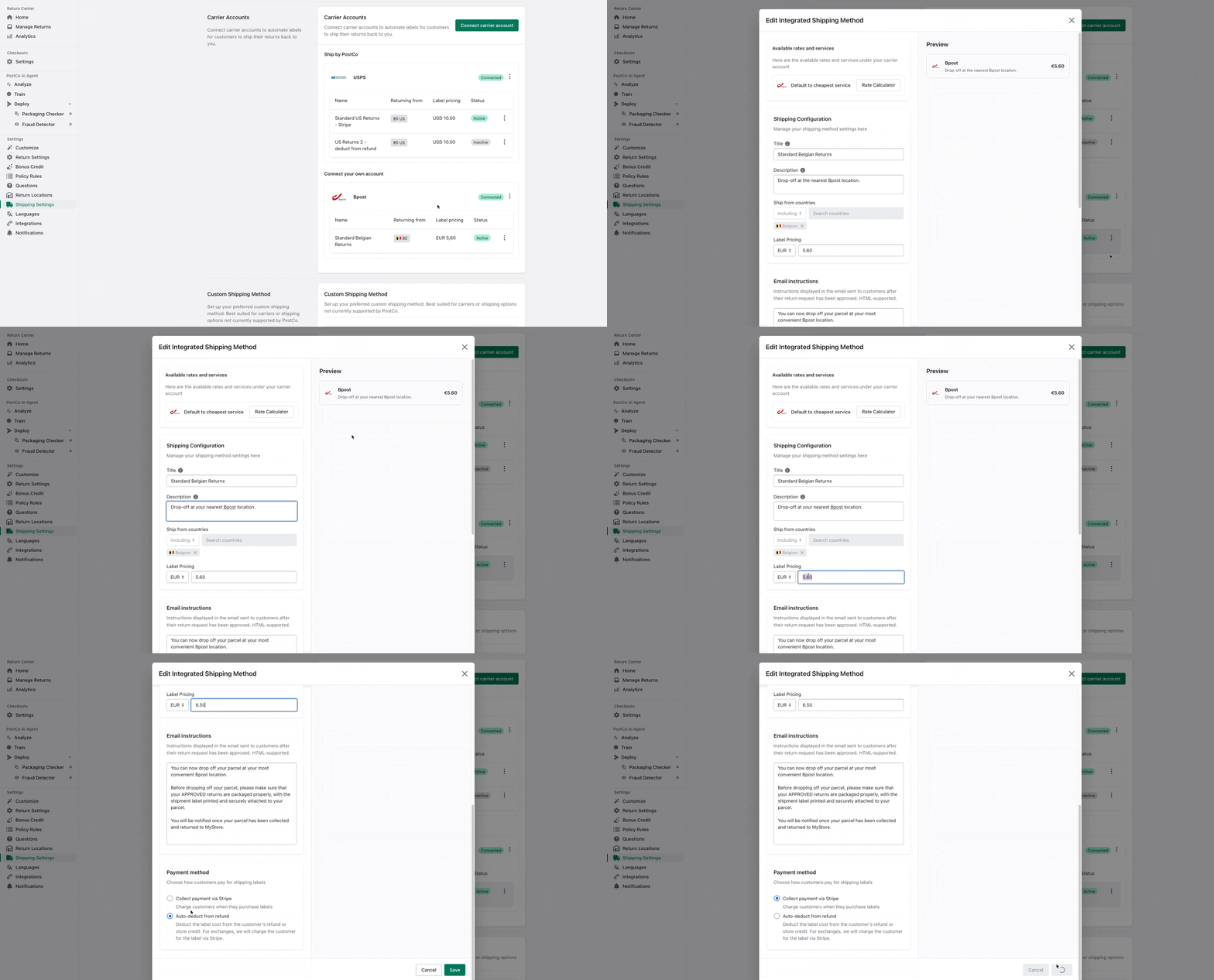
After adding a shipping method above, you can always edit it from your PostCo dashboard.
In the Shipping Settings page, simply click 'Edit' under the shipping method you'd like to make changes to and proceed to update the relevant fields.
Customer experience
Customers will receive an automated email containing detailed return instructions and the return address.
They simply need to follow the steps provided, pack their items securely, print and attach the return label (not needed if a printerless label is issued), and drop the parcel off at the correct facility.
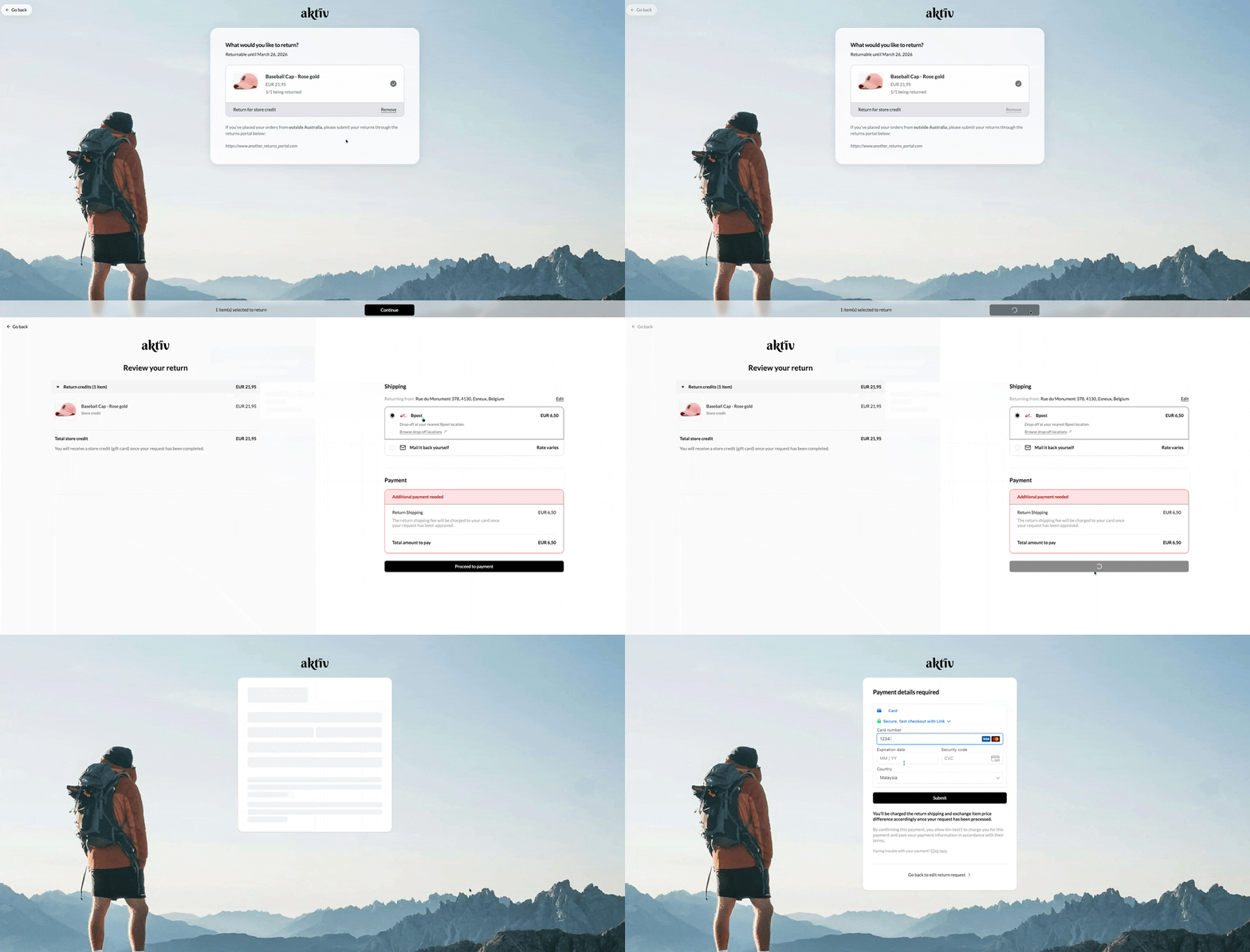
This is how it would look like during the customer returns journey when payment method is set to:
Collect payment via Stripe